Adding users and setting up permissions
Work together with your team by inviting them as users to your Buffer organization, which allows them to contribute new posts, engage with comments, and analyze metrics.
⭐️ This feature is on our Team plan.
Note: Team member settings are only available on the web version of Buffer at this time. It is not possible to update Team settings in the Buffer mobile app.
In this article:
- Video: Adding users and setting up permissions
- How users work within your organization
- User permissions and access
- Inviting users
- Assigning permissions
- Removing users
- FAQ
Video: Adding users and setting up permissions
Watch the video below to learn more about adding users and being part of a Buffer organization.
How users work within your organization
Each individual Buffer user has their own organization (where they can connect personal channels that only they have access to), and they can also be part of other organizations as a user with different levels of permissions.
Notes
- Your users will always access your organization’s channels on their own Buffer dashboard and they will never need to log into your Buffer account.
- Your users will have access to all of the business features of your organization when working with your channels — even if they have a different plan. Most users of an organization have a Free plan.
In the publishing dashboard, your team members will be able to create and share draft posts, and you can define which users should have their posts approved. Posts created by your users will be shared within your posting schedule. You'll be able to see who created each post when viewing the queue.
In the analytics dashboard, your team members will be able to view metrics for any channel they have permission to access. Admins have the additional ability to create reports and access tag metrics.
In the engagement dashboard, users within your Buffer organization who have Full Posting access to your organization's Facebook Pages, Threads, Bluesky, LinkedIn profiles and pages, X/Twitter, and Instagram professional accounts can respond to comments that come through for those accounts.
User permissions and access
We have a few different permission levels. When adding a new user to your organization, you can choose which social channels they see in their Buffer dashboard. For each of those channels, you can choose whether they have Full Posting access or Requires Approval access.
Full Posting access includes the ability to create, schedule, and publish posts for any channel they've been invited to.
Requires Approval access includes the ability to create a draft for admin/owner approval. (Note they will not be able to create posts from the Calendar view). Here's a video that explains the process of Requesting Approval and Approving Draft Posts.
Lastly, you can decide if any of your users should have Admin capability. Choose wisely, as users with Admin access have full control over all the channels you've connected.
Users with admin access won't automatically have access to all channels and will need to be added or add themselves to channels. Admins can also connect new channels.
| Tool | Admin access | Full Posting access (channel specific) | Requires Approval access (channel specific) |
| Account settings |
|
|
|
| Create |
|
|
|
| Publishing |
|
|
|
| Engagement |
|
|
|
| Analytics |
|
|
|
| Start Page |
|
|
|
Inviting users and setting up permissions
Our Team plan supports unlimited team members, so you can invite your team to help you create and manage your content. Follow the steps below to invite a user to your organization and grant them access to channels within your organization.
📝 Notes:
- All organizations are called "My Organization" by default. To reduce confusion, rename your organization before inviting your users.
- In order for a channel to appear on a user's Publish dashboard, they must be granted posting permissions for that channel.
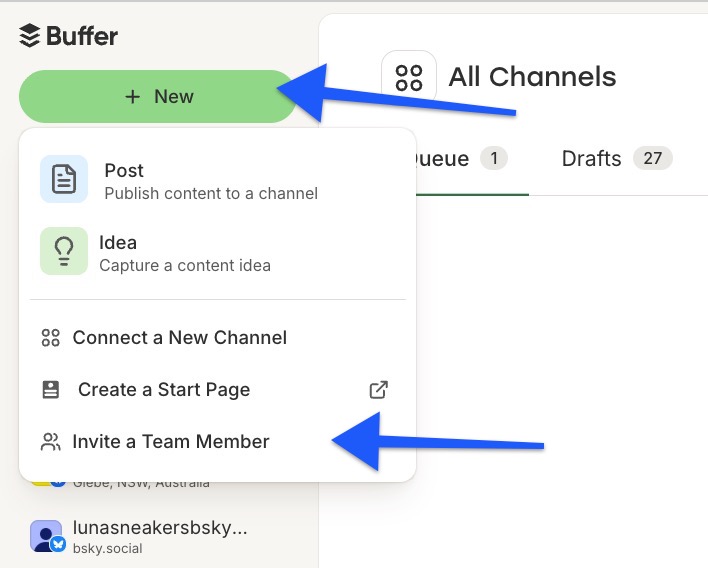
- Click the + New button in the top navigation bar and select Invite a Team Member.
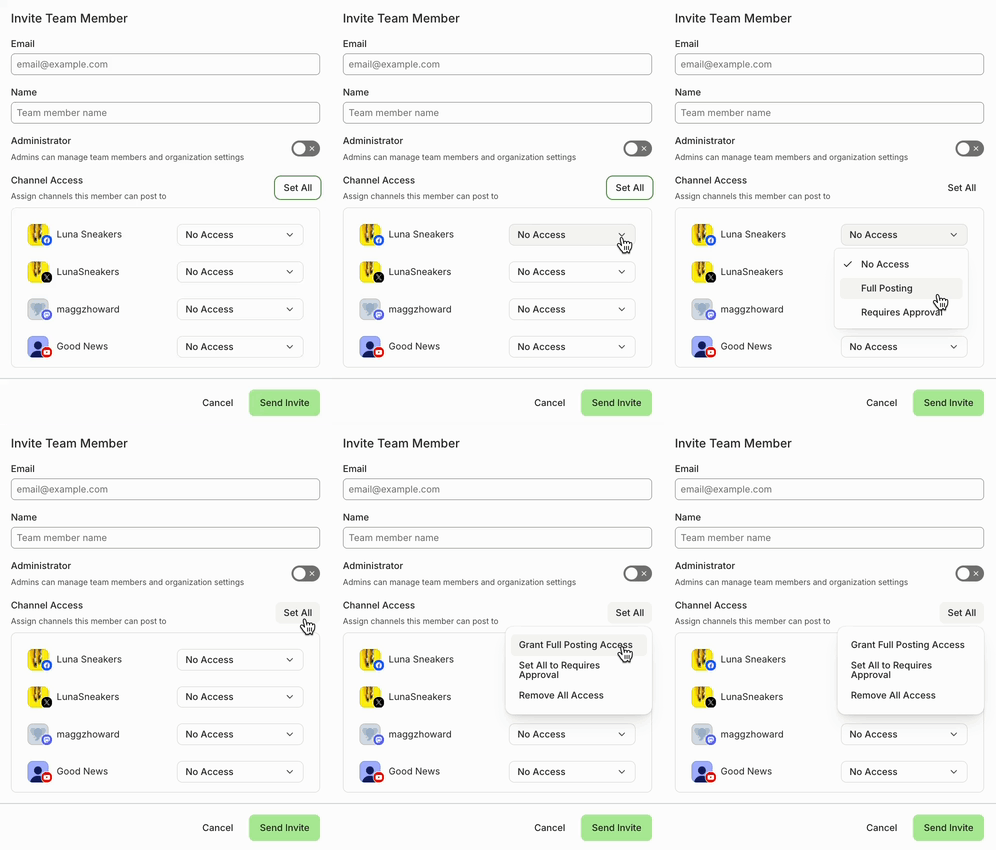
- Click Invite a New User and enter their name and email address.
- Toggle Admin Access to Yes or No, depending on what level of access they should have.
- For each channel, you can choose one of the following access levels:
- Full Posting – Can create, edit, and publish posts.
- Requires Approval – Can create posts, but they must be approved before publishing.
- No Access – Cannot view or post to that channel
If you wish to grant the same access for all of your channels, you can use the Set All option and choose between:
- Grant Full Posting Access
- Set All to Requires Approval
- Remove All Access
Note: If you're using the Tags feature, all users within an organization are able to view all tags within the publishing tool, including all posts belonging to those tags, regardless of whether or not they have access to the channel a post belongs to. Only admins can access tags analytics in the analytics tool.
- Click on Send Invite. They will receive an email invitation and will be required to create their own login. Once logged in to their personal Buffer dashboard, the user will have access to any of the channels you've invited them to. Learn more in this article: Getting started as a user in an organization.
📝 If a user can't find their email invitation, feel free to follow these steps:
• Ask them to check their Spam/Junk folder. If that doesn't work...
• ...remove them as a user in your Buffer Organization and re-add them to generate a new email. If that doesn't work...
• ...email hello@buffer.com with the email address of the user you're trying to add. We'll be happy to investigate more!
Removing users
To remove a user from your organization, you can take the following steps:
- From your publishing dashboard, start by clicking on your profile avatar in the lower left corner of your dashboard and then click Settings.
- Select Team on the left menu.
- Next, click on the user you'd like to remove.
- Click the trash can icon next to their name.

- A pop window confirmation will appear. Click Yes, Remove to complete the process.
⚠️ Please note that all scheduled posts, saved drafts, and posts submitted for approval from the removed team member will remain in their respective queues.
FAQ
Can I change a team member's role or permissions after I’ve invited them to my organization?
Yes, you can adjust a team member's admin permissions or adjust their posting permissions. Learn more in our guide to Changing user permissions in your organization.