
Using Insights in Buffer
Want to know how your content is landing without diving into a full analytics report? Insights has you covered. It's a lightweight analytics view built right into Buffer — check in on a single channel's follower growth, engagement, and impressions, or get a cross-channel overview of how all your channels are performing, all without ever leaving your publishing dashboard.
:::info Note: Google Business Profiles are not supported in Insights due to API limitations.
:::
Video: How to Get the Most Out of Your Buffer Insights
Watch the video below to learn more about Buffer's Insights feature, including both ways to access them:
-
All channel metrics aggregated for a birds-eye view, and
-
AI-powered Takeaways, available on both the All Channels and individual channel views!
Why use Insights?
- Stay in your workflow. Key performance data lives right inside Buffer — no need to jump to a separate analytics dashboard.
- Get a quick pulse-check. See how a channel is trending at a glance before you plan your next post.
- Check in on a single channel or all at once. Drill into one channel's performance or zoom out to see how all your channels are doing from the All Channels view.
- See what's working at a glance. Compare your current numbers against the previous period, the same period last month, or the same period last year — handy for tracking seasonal trends.
- Find your best posts fast. The Performance per Post table ranks your content by engagement rate so you can spot what's resonating and do more of it.
- Watch your audience grow. The Metrics chart makes it easy to visualize follower growth and other key stats over time, or break growth down by channel to see where it came from.
- Make smarter content decisions. With reach, impressions, and engagement rate at your fingertips, you always have clear insights to guide your next steps.
- Turn insights into posts in one click. "Start with AI" takeaways open the composer with an AI prompt already filled in, based on what's been working for you.
How to access Insights
There are two ways to access Insights:
For All Channels - Click Insights in the left sidebar of the web dashboard. Here, you'll see an overview of your Insights across all channels.
For a specific channel - In the left sidebar, select the channel you'd like to view and then click Insights beneath the channel name.
Haven't connected a channel yet, or just browsing as a guest? Insights now shows a live sample dashboard — complete with real charts, sortable performance metrics, follower graphs, and top-post cards — so you can see exactly what Insights looks like in action before connecting a channel. Click Preview Mode to view data from Buffer’s own channels.
You'll land on the Insights dashboard for that channel. It defaults to the last 30 days, but you can adjust the date range using the options at the top of the page.
Available date ranges:
- Last 7 days
- Last 30 days
- Month to date
- Last month (paid plans only)
- Custom (paid plans only)
When you select Custom, you'll see a search box in the date picker that accepts natural-language queries. You can type:
- A specific month, e.g. April 2026 or April
- Half-year shortcuts, e.g. H1 2026 (Jan 1 - June 30th, 2026). H1 or H2 defaults to the current year.
- A relative range, e.g. last 7 days, last 30 days or last 365 days
- A month-to-month range, e.g. April to May 2026, April 2026 - May 2026, or April - May 2026
If Buffer can't understand what you've typed, you'll see a small message below the search input suggesting examples. The message clears as soon as you keep editing your query or pick a supported format.
:::tip Tips
- The Custom date range is handy for tracking specific campaigns — great for reviewing how a product launch or seasonal push performed.
- The Custom date range and Last month is available on Essentials and Team plans. Free plan Insights includes Last 7 days, Last 30 days, and Month to date.
- You can save any combination of date range and comparison as a named view — including the default Last 30 days, Month to date, Last month, Last 7 days, and Custom. Look for the bookmark icon next to the filter controls. Reopening the saved view restores both the date range and any comparison you had set.
💡 No data for the selected period? If there are no posts or no metrics available for your selected date range, Insights will show a "No Data Found" message in the chart. Try widening your date range or switching to a period when you were actively posting. If you've just connected a channel, data may take a short time to populate.
:::
Filtering Insights
Both Tags and Channels filters are available in the All Channels view, and on Instagram and Facebook channels you can also filter by Post Type, making it easy to narrow down your Insights to just the posts or channels you care about. This makes it easy to track how a specific campaign, launch, or content theme is performing over time, without digging through individual posts. If you're viewing a single channel, you can still filter by Tags to focus on specific content categories.
Filter by Tags:
- In the top right of the Insights dashboard, click Tags.
- A dropdown will appear with a search bar and a list of your available tags.
- Check one or more tags to filter your Insights to only posts that have those tags applied. You can also search for specific tags or select Untagged to see posts without any tags.
Filter by channel (All Channels view only)
The channel filter at the top of the Insights page drives every section on the page, including the Metrics chart. There's no separate in-chart channel picker.
- In the top right of the Insights dashboard, click Channels.
- A dropdown will appear with a searchable list of your connected channels.
- Check one or more channels to narrow Insights down to just those channels. You can also use Select all to include everything, or search by channel name to find one quickly.
:::tip Tip: Tags and Channel filters can be used together so you can see how a specific content category performed across a subset of your channels.
:::
:::info Note: Insights doesn't support every channel type. Facebook Groups, Instagram personal profiles, and Start Page are greyed out in the channel filter and excluded from Insights data and exports. If a channel group contains only unsupported channels, the whole group is disabled too. To see these channels' data, head to their native dashboards.
:::
Filter by Post Type (Single-channel view, Instagram and Facebook only)
On the single-channel Insights page for Instagram and Facebook, you can filter your Insights by post type: Post, Reel, or Story.
- In the top right of the Insights dashboard, click Post Type.
- A dropdown will appear with the post types available for that channel.
- Check one or more types to narrow your Insights to just those formats. Leave everything unchecked to include every post type.
The Top Posts table, Summary tiles, and Metrics chart all narrow to the same selection. You can also save your filtered view as a Saved View.
:::info Notes
- It only appears on Instagram and Facebook single-channel views.
- The Top Posts column set can change with the filter. For example, filtering to Story drops any columns that Story posts don't report on (like engagement rate). This is expected: columns come from the metrics the returned rows report.
- The Followers, Reach, and Views chart views can't be narrowed by post type. Those plot channel-level daily snapshots, not posts, so the filter doesn't apply. You'll see an inline notice naming any filter the chart can't apply.
:::
Exporting your Insights
:::warning
- Exporting Insights data as a CSV, Markdown, or PDF file is available on our paid plans.
- Downloading snapshots is available on all plans, including Free.
- Members with view-only access to a channel can see its Insights but cannot export. On the All Channels page, if the selection mixes channels they can and cannot export, the file only includes the channels they have export access to.
:::
Learn more about our plans and pricing here.
You can export your Insights data at any time, either from a single channel view or the All Channels view. The export reflects exactly what you're currently seeing on the page, including your active date range, tag filters, and channel filters.
How to export your Insights data
:::info Notes on column selection in PDF and CSV
- PDF exports show up to 6 metric columns at once, so the layout stays clean and readable. If you've selected more than 6, you'll see the first 6 in your chosen order, plus a note showing how many of your selected columns made the cut.
- CSV exports include all your chosen metric columns in order, followed by a Statistics column with everything else, so no data gets left out.
:::
- Open Insights on the left side panel (either for a specific channel or the All Channels view).
- Set the page up the way you want it before exporting. The export captures exactly what's on screen, including:
- Date range, Tags, and (in All Channels) Channels filters
- The active sort on the performance and Top Posts tables — for example, sorting All Channels by engagement rate will reorder the PDF's channel summary, the per-channel detail sections, and the top-25 channel cap to match
- The columns you've kept in the column picker on the single-channel Top Posts table and the All Channels performance table.
- Click the Export button at the top of the page, near the date range and filter controls.
- Choose your format:
- Export to CSV — downloads a .zip file containing three separate CSV files: summary.csv, posts.csv, and timeseries.csv. Great for spreadsheets, client reports, and custom analysis.
- Export to Markdown — downloads a single .md file with all three sections. Great for pasting into reports, docs, or AI tools.
- Export as PDF — opens a short configuration step first, where you can set a custom report name, upload a cover logo, and choose which sections to include (see Customizing your PDF export below). Buffer then generates a branded PDF report of your current Insights view.
- For the All Channels view, the export includes an aggregated Summary, Top 5 Posts by Reactions, Top 5 Posts by Comments, a per-channel Performance table, and a detailed section for each channel with its own Summary metrics, charts, and top posts.
- Download Snapshots — downloads all of your Insights charts as images for easy sharing
- The file will generate in the background. Smaller exports download almost immediately; larger ones (long date ranges or high post counts) may take a few minutes. A spinner will show while the file is being prepared so keep the tab open until the download starts.
Customizing your PDF export
When you choose Export as PDF, Buffer opens a short configuration step before the report generates. This works the same way on both the All Channels and single-channel Insights pages.
You can set:
- Report name: a custom title shown in the PDF header. Leave it blank and Buffer will use your organization name instead.
- Cover logo: upload your own logo to replace the default Buffer branding on the report's cover. Buffer saves the last logo you upload, so you won't need to re-upload it on your next export.
- Sections to include: every section is on by default. Uncheck anything you don't want in the final PDF.
:::info Good to know: This configuration step only applies to PDF exports. CSV and Markdown exports run immediately, with no extra step.
:::
What's included in the export
Both formats include data from all three Insights sections:
- Summary — each metric's current value and its percentage change vs. the previous period.
- Performance per Post — one row per post, including Post ID, published date and time, a post excerpt, post type (image, reel, carousel, video, etc.), post URL, any Buffer tags applied, and all available metrics for that channel (impressions, reach, reactions, comments, shares, saves, engagement rate, and so on). Only metrics that exist for the channel are included.
- Metrics Over Time — daily followers, posts published, and post views for the selected period.
:::info Good to know: Metrics included in the export vary by channel, just as they do in the Insights dashboard. You won't see empty columns — only the metrics your channel actually reports.
:::
:::tip Tip: If you want a different slice of your data, just update your filters and export again. Each export reflects the current state of your filters exactly.
:::
Summary
The Summary section gives you a snapshot of how your channel performed during the selected date range, compared to another period of your choice.
Use the Compare to dropdown above the Summary grid to pick what to compare against:
- Previous Period — the same number of days immediately before your selected range (default).
- Same Period Last Week — the equivalent calendar window one week earlier. Best for short-range, week-over-week check-ins. (Unavailable when your selected date range is longer than 7 days.)
- Same Period Last Month — the same calendar dates one month back.
- Same Period Last Year — the same calendar dates one year back.
- Custom — pick any historical start date and Buffer will use a comparison window the same length as your current period. Dates that would overlap your current period, or dates in the future, can't be selected.
Each metric updates its comparison indicator (e.g. ↑ 28.6%) to reflect the period you've selected.
:::info Notes
- The Compare to dropdown is currently available on single-channel Insights pages only. It does not appear on the All Channels view.
- Your comparison choice is now saved alongside the date range when you bookmark a view, so reopening a saved view restores both.
:::
Followers table
The Followers table sits right at the top, showing your current followers and exactly how many you've gained (or lost) over your selected date range. We show that as a plain number, like +42, not a percentage, so you can see the real movement at a glance.
:::info Good to knows
- Some networks only check in on your follower count every so often instead of daily. When that's the case, you'll see the most recent reading available for your selected period.
- If a channel doesn't report follower data at all, the Followers table will be hidden.
:::
Available metrics
You'll see the following metrics:
- Posts — the number of posts your channel published during the period. For Facebook Pages, this no longer includes posts visitors left directly on your Page — only posts the Page itself published are counted.
- Reactions — total likes/reactions received across all posts
- Comments — total comments received
- Impressions — total number of times your posts were displayed. For Instagram, this metric is now labeled Views everywhere in Insights — on the single-channel page, the All Channels summary, and any mixed-channel selection that includes Instagram — matching what you see on Instagram's own Insights page.
- Shares — total shares
- Saves — total saves
- Follows — new followers gained during the period
- Reach — the number of unique accounts that saw your content
- Engagement Rate — the percentage of people who engaged with your posts out of those who saw them
Each metric includes a comparison indicator (e.g. ↑ 28.6%) so you can see at a glance how things have changed.
:::info Good to Knows
- Not all metrics are available for every channel — it depends on what each social network shares through its API. For example, Saves may only appear for Instagram, and Reach may not be available for all networks.
- Note for LinkedIn profiles:
- Reactions count only the reactions on the post itself, matching what you'd see on LinkedIn.
- Comments include nested replies underneath top-level comments, since LinkedIn's own comment total works the same way.
- This applies to LinkedIn profile channels. LinkedIn Pages use a different LinkedIn API that doesn't break totals down the same way.
- Note for Substack:
- Reactions count likes on your Note, and Comments count replies.
- Restacks count how many times someone restacked (reshared) your Note on Substack.
- Impressions count every time your Note was viewed, and Reach counts the unique people who viewed it.
- Shares count clicks on your Note's share link, not restacks.
- Free Subscriptions and Paid Subscriptions count the subscribers Substack attributes to each Note.
- Engagement rate isn't available for Substack, because Substack doesn't share the numbers needed to calculate one.
- Follower counts and publication-level stats (like total subscribers or open rates) aren't available for Substack. Those stay in your Substack dashboard.
:::
Sharing your Summary as a post
On a single-channel Insights view, you can turn your Summary stats into a ready-to-publish post.
-
Click the Share as Post button in the Summary section header.
-
This will generate a branded 1080×1080 image showing your top stats (reach, likes, replies, shares, etc.) with your channel's avatar and Buffer branding.
-
Open the Post Composer with that image attached, alt text set, and a short caption pre-filled.
-
Tweak the copy, choose which channels to post to, and schedule or publish like any other post.
:::info Good to know
- Share Summary is only available on single-channel Insights. It doesn't appear on the All Channels view because there's no single channel for the post to default to.
- The image always uses a 1080×1080 square layout, which Instagram, X, LinkedIn, and Facebook all accept without further cropping.
- Up to 4 stats are shown on the card, picked from what's available for your channel (reach, likes, replies, shares-style metrics).
:::
:::tip 💡 Tip: Want to grab every chart's Share-as-Post image at once? Use Download Snapshots from the Export menu — it packages them all into a single ZIP without opening the composer. Available on every plan, including Free.
:::
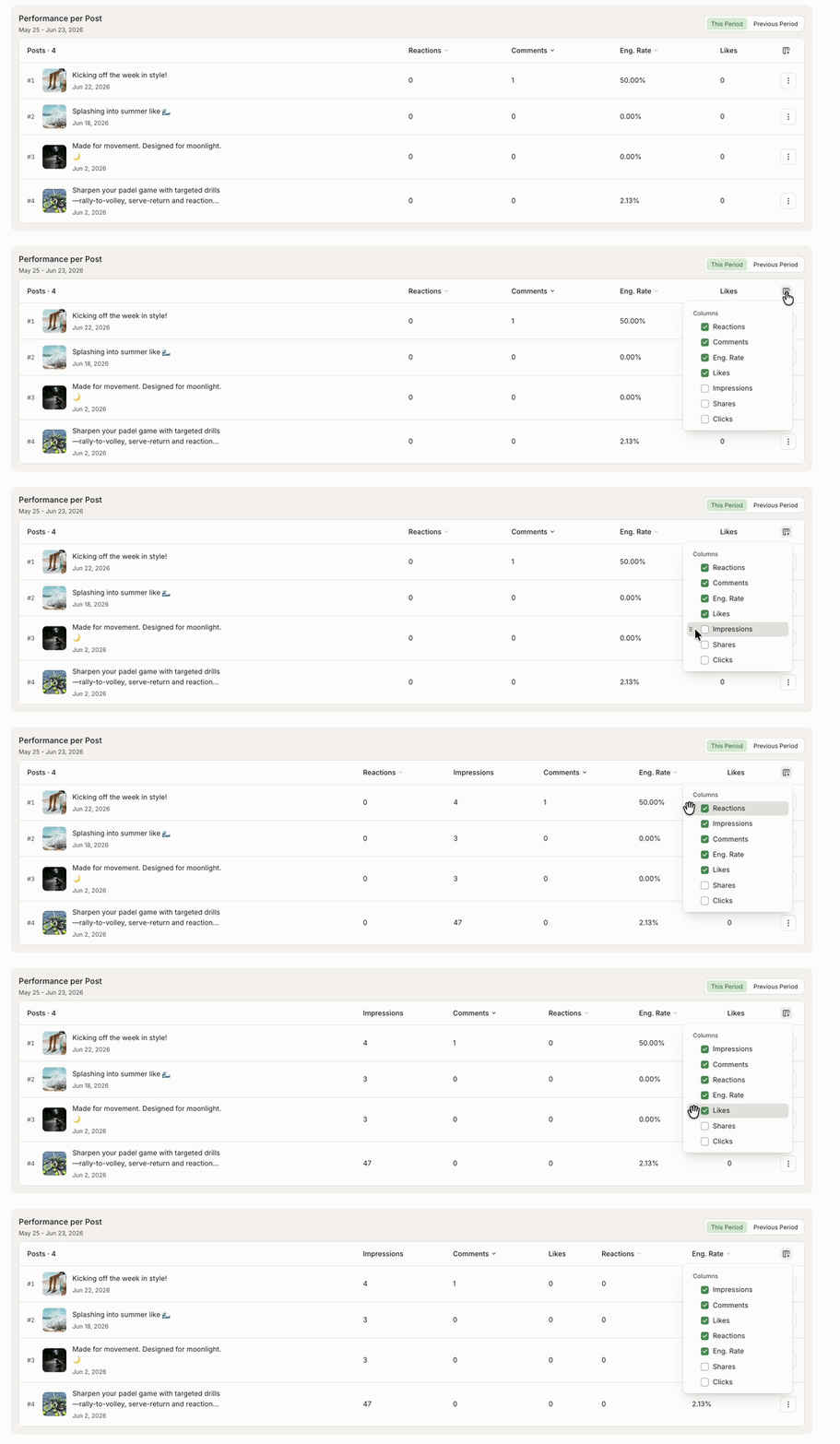
Performance per Post
The Performance per Post table breaks down how each individual post did during the selected date range.
For each post, you'll see:
- Post — a thumbnail and preview of the post content
- Eng. Rate — the engagement rate for that post
- Reactions — the number of likes/reactions for that post
- Comments
- Views
For Instagram Stories, you’ll see:
- Views: how many times the Story was played.
- Reach: the number of unique accounts that saw the Story.
- Replies: replies sent to the Story.
- Eng. Rate: engagement rate (Interactions ÷ Reach).
You can also rearrange the order of columns from the column selector, like this:
Sorting the table
Click any metric column header in the Performance per Post table to sort by that metric. Click again to switch between descending and ascending order. Sortable metrics may include Eng. Rate, Reactions, Comments, Views, Impressions, Reach, Shares, Reposts, Clicks, Saves, Follows, Quotes, Total time watched, and Viewers.
Sorting is per network. A column is only sortable where that channel actually reports the metric, so the sortable columns you see will vary by channel (for example, Facebook clicks are sortable on Facebook, and LinkedIn viewers and total time watched are sortable on LinkedIn).
:::info Note: Some metrics also vary by post type. Instagram Reels, for example, don't show a Follows column, since Meta doesn't report Follows for Reels, only for Feed posts and Stories. See Instagram metric descriptions for a full breakdown by post type.
:::
:::tip 💡 Tip: Your top posts by engagement rate are a goldmine for content inspiration. Look for patterns in format, topic, or timing and lean into what's clicking with your audience.
:::
Metrics chart
The Metrics section shows a line chart of a metric over your selected date range. Note that date and tag filters do not apply to this chart — it always shows data for the full year regardless of the date range selected elsewhere in Insights.
When you open a channel, the chart opens on Content Impact by default, layering your posts on top of your follower growth so you can see how the two track together. Want a different view? Grab one from the buttons below. The default flips back to Content Impact each time you switch channels.
:::info Note: No follower data for a channel? The chart opens on Posts instead.
:::
A set of curated view buttons sits above the chart, each designed to answer a specific question about your channel's performance:
- Posts — how often you published during the selected period.
- Content Impact — your post volume alongside follower growth, side by side.
- Audience Growth — followers over time, plus net new followers gained.
- Visibility — impressions (or Views, for Instagram) compared against your follower count.
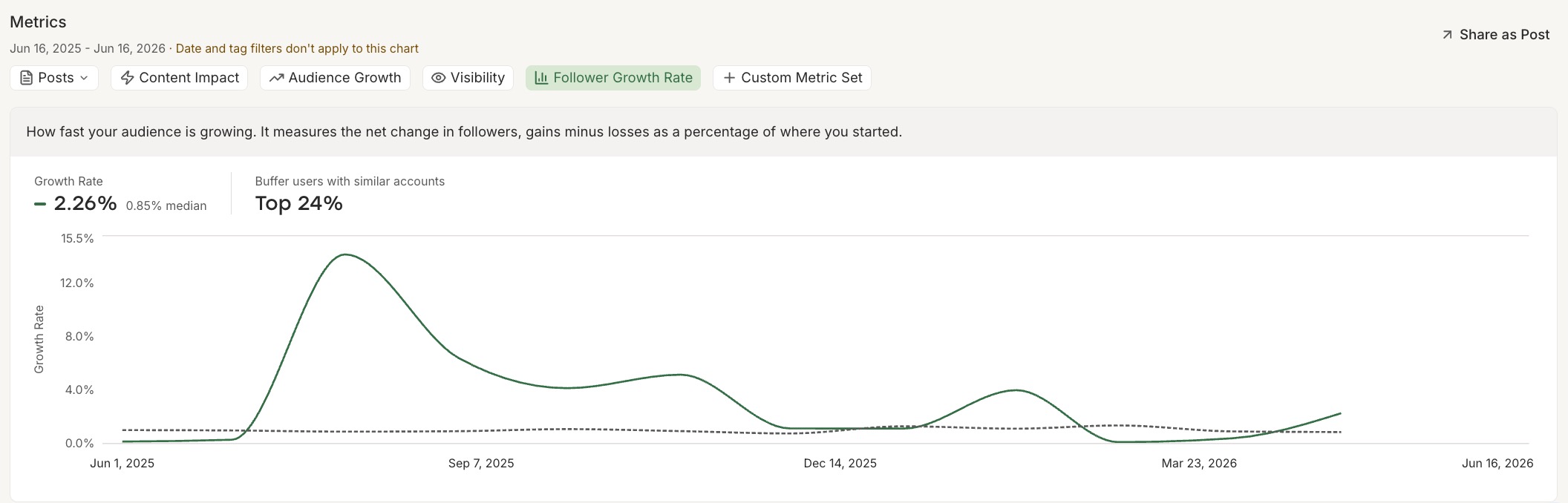
- Follower Growth Rate (LinkedIn channels only) — your monthly follower growth rate benchmarked against similar Buffer accounts. See the callout below for details.
- + Custom Metric Set (available on paid plans) — build your own view by selecting the metrics you want to track together.
Selecting a button updates the chart automatically. You can also use the metric dropdown (e.g. Followers) directly above the chart to switch to any individual metric available for your channel.
:::info Notes
- The Visibility tab (impressions, or Views for Instagram) is only shown for networks that report views data. It's hidden on Bluesky, X/Twitter, and Mastodon channels — those networks only report follower counts at the channel level, so there's no views data to display.
- The Follower Growth Rate benchmark is available on LinkedIn channels only. It plots your monthly follower growth rate over time and compares it against the median for a cohort of similar Buffer accounts, showing you a percentile rank so you can see where you stand relative to comparable pages.
- What counts as a "similar account"? The cohort is matched on two things: channel type (pages are compared to pages, profiles to profiles) and approximate follower count. It's scoped to other LinkedIn channels connected to Buffer — not LinkedIn as a whole.
:::
How channels show up in the chart
By default, in the All Channels view, the Metrics chart shows your first 5 channels. Apply the channel filter at the top of the page, and the chart switches to your selected channels, drawing up to 10 at a time. When more channels exist than the chart can show, you'll see an inline notice ("Showing X of Y channels. Filter by channel to see a different set.") in the section subheading.
:::info Note: Some metrics aren't available for every channel. If a channel you've selected doesn't report the metric you're viewing, for example Pinterest doesn't report followers, you'll see a notice like "Pinterest profiles don't report followers, so they are excluded from this chart," and that channel won't be drawn.
:::
Follower breakdown views (All Channels)
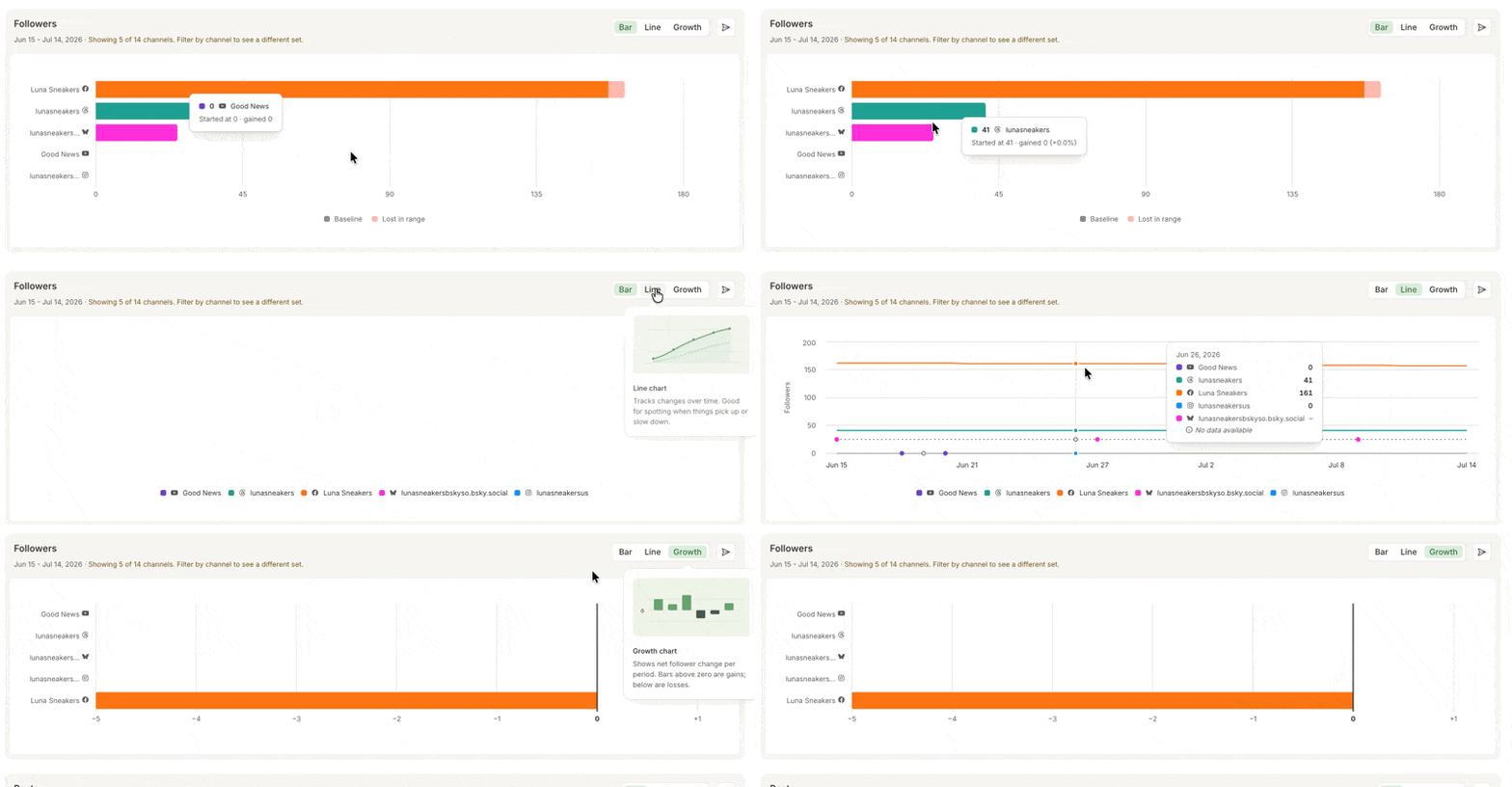
The All Channels Metrics area is split into two stacked cards — Followers on top and Posts below.
In the All Channels view, the Followers metric has its own view toggle so you can choose how to look at follower counts:
- By channel — a ranked bar chart, one bar per channel, sorted by current followers. The solid base shows where you started or ended (whichever is lower), and the coloured segment on top shows the change for the period. The label at the top of the bar shows current followers and the change in brackets (e.g. "12,340 (+128)"). Use this to see which channels are biggest and where the largest movement happened.
- Growth — a diverging bar chart of net change per channel, sorted gains-first. Bars are coloured by direction — green for gains, red for losses — so you can spot at a glance which channels grew and which shrank. The channel-colour legend isn't shown in this view because colour is being used to mean direction here.
- Over time — the standard line/area chart of followers across the period (this is the same view you've had before).
Posts has its own toggle too — see Posts chart (All Channels) below.
:::info Notes
- Hover over the Followers chart to see each channel's status for that day: a number for a live reading, "As of [date]" for a carried-forward value from the channel's most recent data, or "No data available" if the channel doesn't have a reading yet.
- If you choose a date range that starts before a channel is connected, hovering over a date prior to connecting the channel will show "No data available" for the affected channel.
:::
Posts chart (All Channels)
Below the Followers table the Posts chart has its own Bar / Stacked Bar toggle:
- Bar (default) — a horizontal ranked chart, one bar per channel, showing total posts over the selected date range, sorted from most to fewest. Best for seeing at a glance which channel you posted to the most.
- Stacked Bar — vertical bars over time, with each day broken down by channel. Best for seeing when you posted most across the range and how that activity splits across channels.
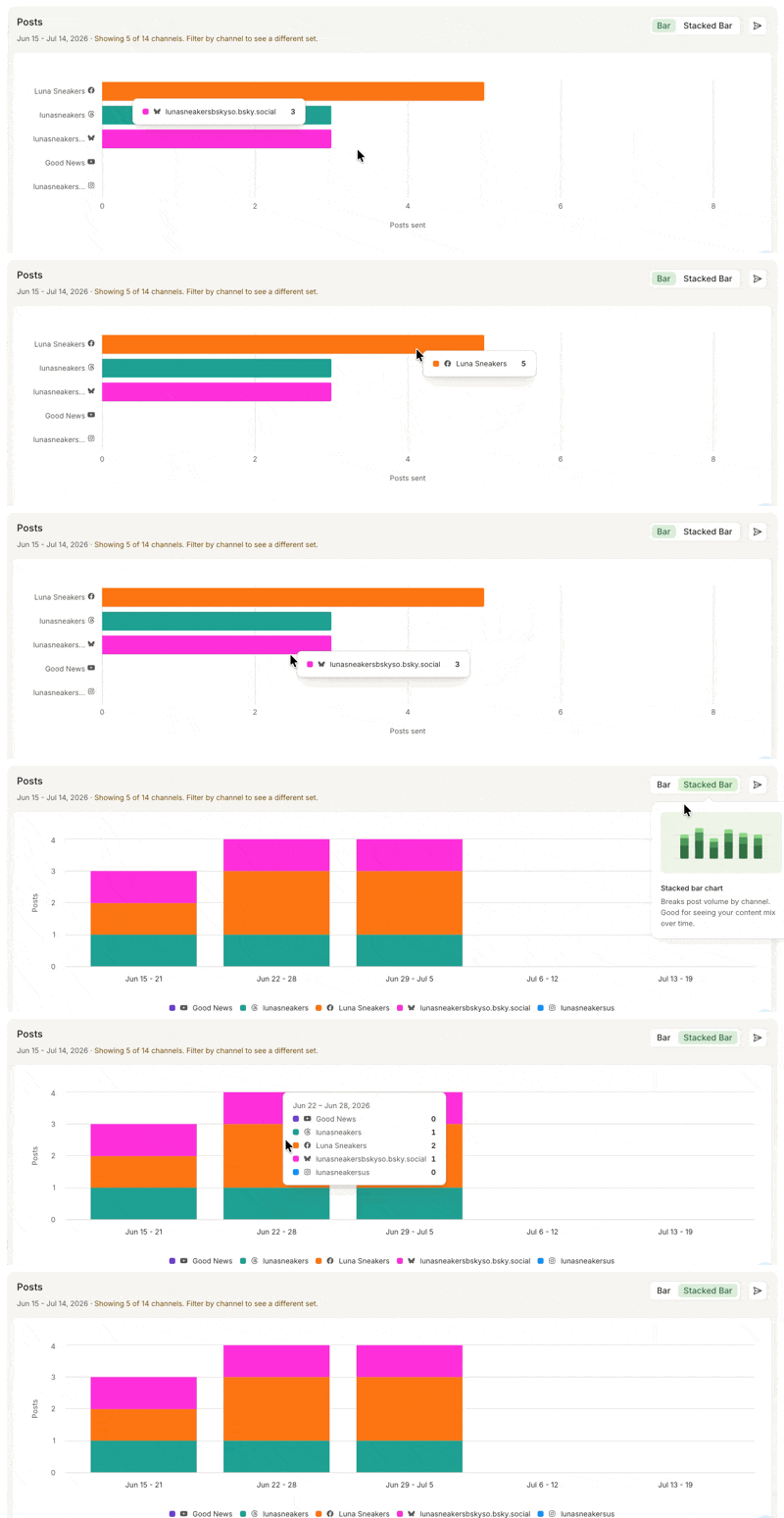
:::info Good to know: Share as Post on the Posts table captures whichever view is on screen, including the ranked Bar view. This differs from the Followers table above, where Share as Post only captures the Over Time chart even if you're viewing By channel or Growth.
:::
Comparing periods
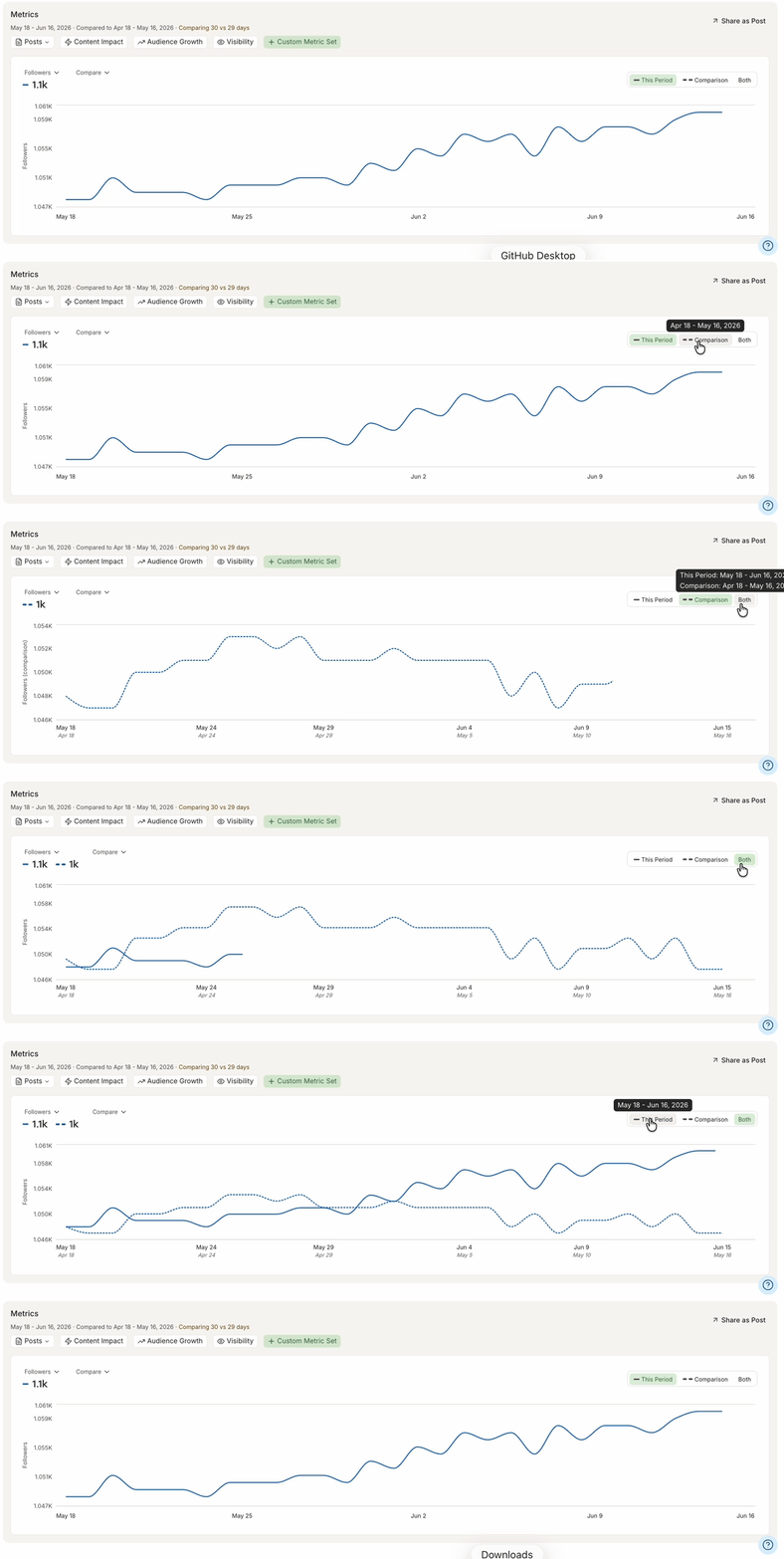
Use the Compare dropdown to overlay data from an earlier period. Five options are available:
- Previous Period — the same number of days immediately before your current date range. Best for short-term trend checks (e.g. comparing this week to last week).
- Same Period Last Month — the equivalent calendar window one month earlier. Best for monthly reviews where month-over-month progress matters more than seasonality.
- Same Period Last Year — the equivalent calendar window twelve months earlier. Best for year-over-year reporting and tracking seasonal trends.
- Same Period Last Week — the equivalent calendar window one week earlier. Best for short-range, week-over-week check-ins. (Unavailable when your selected date range is longer than 7 days.)
- Custom (paid plans only) — pick any historical start date and Buffer will use a comparison window the same length as your current period. Dates that would overlap your current period, or dates in the future, cannot be selected.
A toggle in the top right of the chart lets you control what's displayed:
- This Period — shows only your current date range (solid line).
- Comparison — shows only the comparison period (dashed line).
- Both — overlays both periods on the same chart.
Hover over any toggle option to see a tooltip with the exact date range it covers, so you always know which window is which.
Your comparison choice is saved in the URL, so you can bookmark or share a specific view.
:::info 💡 Tip: Combine the channel filter with the Tags filter to see how a specific content category performed across your selected channels.
:::
Takeaways
The Takeaways section provides AI-powered observations about your recent content performance. Unlike the Summary and Metrics chart, Takeaways are not affected by the date range selector. They reflect a broader view of your content performance and stay consistent as you explore different time windows in the chart above.
Use Takeaways alongside the date-filtered chart to get both the big-picture story and the granular trend data at the same time.
On the All Channels page, Takeaways works a little differently. Alongside the same kinds of cards you'd see on a single channel, you'll also get cross-channel highlights — like which channels have replies waiting or which posts got no comments — plus a curated mix of standout takeaways pulled from your individual channels. Each of these links out to the full single-channel Insights page if you want to dig deeper.
:::info Note on engagement rate in Takeaways: Takeaways calculates engagement rate by pooling engagement and reach across your posts first, then computing the rate — so posts seen by more people carry proportionally more weight than posts with only a handful of views. This calculation also counts Instagram saves and LinkedIn comments as engagement.
:::
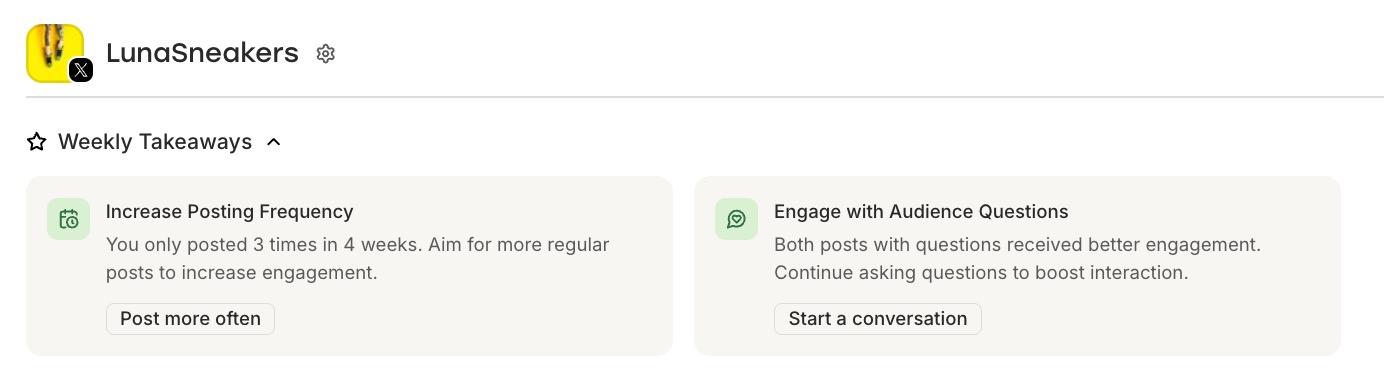
Takeaways can include a mix of the following:
- Performance tips highlight patterns in your content — things like which formats are resonating, what topics are driving engagement, and trends worth repeating.
- Repost suggestions identify your best-performing older posts and suggest republishing them to extend their reach.
- Start with AI cards are interactive. Click one to open the post composer with the AI Assistant panel already active and a prompt pre-filled based on what's been working for you. You can tweak the prompt or run it as-is, then schedule the resulting post like any other.
- Draft reminders point you back to a draft you have not published yet. They only show when your channel has at least one draft. If the newest draft is past its due date, you’ll see a nudge that it’s overdue. You can click Review draft to open the composer and finish publishing.
:::info Note: The repost takeaway only appears for channels with posts older than four weeks and is not currently available for Bluesky or Mastodon channels.
:::
Sharing feedback on Takeaways
Each Takeaway card has a thumbs-up and thumbs-down button in its header. Click thumbs up if a takeaway felt useful, or thumbs down if it didn't — your feedback helps us tune which kinds of Takeaways you'll see in future. Your selection stays highlighted so you can see at a glance which cards you've already rated. Change your mind? You can click again to unselect your choice.
On smaller screens, the feedback buttons sit just below the category icon, with the title underneath. On wider screens, they tuck into the right side of the card header and appear when you hover or focus on the card.
Supported channels
Insights is available for these channels:
- Instagram (Professional accounts — Business or Creator)
- Facebook Pages
- X/Twitter
- LinkedIn Pages and Profiles
- TikTok
- Threads
- Bluesky
- YouTube
- Mastodon
- Substack
:::info Good to Know: The metrics available in Insights will vary depending on the channel. Each social network controls what data it makes accessible through its API, so you may see different metrics for different channels.
:::
Good to Knows
- The numbers may differ from your native analytics. Small discrepancies between what you see in Buffer and what you see in Instagram, Facebook, or other native dashboards are completely normal. Each platform calculates and updates data in its own way.
- Facebook Page post counts may now be lower than before. Insights previously counted posts that visitors left directly on your Facebook Page as if your Page had published them, inflating your Posts count (and any metrics rolled up from it). Only posts your Page actually published are counted now, so if your Facebook numbers dropped recently, this is why — it's a correction, not a drop in activity.
- Historical data availability varies by channel. When you first connect a channel, Buffer backfills data going back a set period. Here's what to expect:
| Channel | Backfill period |
|---|---|
| 30 days of post data; 6 months of channel-level data | |
| Instagram (Professional) | 30 days of post data; stories collected from connection date onwards only |
| X/Twitter | 30 days of post data; no channel-level data available |
| LinkedIn Pages | 30 days of post data; 6 months of channel-level data |
| TikTok | 60 days |
| Threads | 60 days |
| 90 days | |
| YouTube | 90 days |
| Bluesky | No backfill — data collected from connection date onwards only |
| Mastodon | No backfill — data collected from connection date onwards only |
| Substack | Your 100 most recent Notes; new Notes you publish on Substack are picked up daily |
If you're not seeing historical data you expected, reach out to our team at hello@buffer.com.
:::warning Instagram Personal accounts have limited data. To get the full range of metrics in Insights for Instagram, you'll want your account connected as a Professional (Business or Creator) account. Personal accounts have restricted API access. See Connecting your Instagram account to Buffer for more details.
:::
FAQ
How far back can I view data?
You can use the preset date ranges:
- Last 7 days,
- Last 30 days
- Month to date
- Last month (paid plans)
or set a custom range (paid plans only).
How far back data goes depends on the channel — for example, Facebook and LinkedIn Pages backfill 6 months of channel-level data and 30 days of post data when first connected, while Instagram and X/Twitter backfill 30 days of post data. Check the Historical data availability table in the Good to Knows section above for a full breakdown.
How is engagement rate calculated?
Engagement rate is based on the interactions a post received (likes, comments, shares, etc.) relative to how many people saw it during the selected period. In the Takeaways section, engagement rate is calculated a little differently: engagement and reach are pooled across posts before the rate is calculated, so posts with more exposure weigh more heavily in the result than posts seen by only a few people. This pooled calculation also includes Instagram saves and LinkedIn comments as engagement.
:::info Note for LinkedIn profiles: Reshare data isn't available at a reliable level of accuracy for LinkedIn profile posts, so Buffer uses (reactions + comments) / impressions for the engagement rate on those posts. LinkedIn Page posts are unaffected — they use the engagement rate LinkedIn itself reports, which includes shares.
Note for Instagram posts: Engagement rate is now reported on the same 0–100 percentage scale as every other network, so Instagram sorts and compares correctly alongside your other channels.
:::
Why don't I see all the metrics listed?
Not every metric is available for every channel. If something isn't showing up, it's because that social network doesn't share that data through its API. Nothing's broken, it just varies by platform!
My Insights numbers look different from what I see in the native app — is that normal?
Totally normal! Differences in how and when each platform processes data can cause the numbers to vary.
Can I export my Insights as a PDF?
Yes, on our paid plans. Click the Export button at the top of the page and choose Export as PDF. You'll first see a short configuration step where you can set a report name, upload a cover logo, and pick which sections to include. Once you confirm, the export runs in the background and generates a branded report. Single-channel exports include a cover page, Summary metrics, Metrics-over-time charts, and a Performance per Post table. All Channels exports include an aggregated Summary, Top Posts by Reactions and Comments, a per-channel Performance table, and a detailed section for each connected channel.
Free plans can still download snapshot images for free using the Download Snapshots option in the same Export menu.
Can I download all my Insights charts as images?
Yes! Click the Export button and choose Download Snapshots. Buffer will package every chart's Share-as-Post image (all view variants included) into a single .ZIP for you. This option is available on every plan, including Free.
Can I save my Insights view?
Yes — click the bookmark icon next to the filter controls to save any combination of date range, comparison, channels, and tags as a named view. All preset date ranges plus Custom are saveable, both on single-channel and All Channels pages. Learn more about saving custom views in Buffer here.
:::info Need help with Insights? Send us an email at hello@buffer.com and our Advocacy team will be standing by to help.
:::