Using Buffer's Magic Resizer for images
Posting the same image across multiple social networks usually means resizing it over and over to fit each platform's specs. Magic Resizer does that in one step: upload a single image and get it cropped and exported for every major social network at once, right in your browser.
In this article:
- What is Magic Resizer?
- Where to find it
- Supported networks and sizes
- Supported file types
- How the smart crop works
- Downloading your images
- Usage limits
- Privacy
- Troubleshooting
- FAQ
What is Magic Resizer?
Magic Resizer is a free tool from Buffer that resizes one image into every size you need for social media. Upload a photo or graphic once, and it automatically crops and exports versions sized for each network's specs, so you don't have to manually resize the same image over and over.
Where to find it
Magic Resizer lives at buffer.com/free-tools/image-resizer. You don't need a Buffer account to use it.
Each supported network also has its own dedicated page, for example buffer.com/free-tools/image-resizer/instagram. These pages pre-select that network's sizes and show you the size specs up front, which is handy if you only need to resize for one platform.
Supported networks and sizes
Magic Resizer covers 24 size presets across 11 networks:
| Network |
|---|
| X (Twitter) |
| YouTube |
| TikTok |
| Threads |
| Bluesky |
| Mastodon |
| Google Business Profile |
💡 Tip: If you only post to one or two networks, use that network's dedicated page (like the Instagram or LinkedIn resizer) instead of the full hub. It skips straight to the sizes you need.
Supported file types
Magic Resizer accepts:
- JPEG
- PNG
- WebP
- HEIC
Files must be 10 MB or smaller. GIFs aren't supported.
📝 Good to Knows:
- If you upload a JPEG, any transparent areas in the output are filled in with white, since JPEG doesn't support transparency.
- If you upload a WebP file, your resized images will export as PNG.
How the smart crop works
When you upload an image, Magic Resizer automatically detects the focal point and crops each preset around it, so your subject stays centered and framed well across every size.
If the automatic crop doesn't look right for a particular preset, you can adjust it:
- Upload your image to Magic Resizer.
- Choose the network or networks you want to resize for.
- Click Adjust under any image you want to fine-tune.
- Drag to reposition the frame, then confirm your changes.
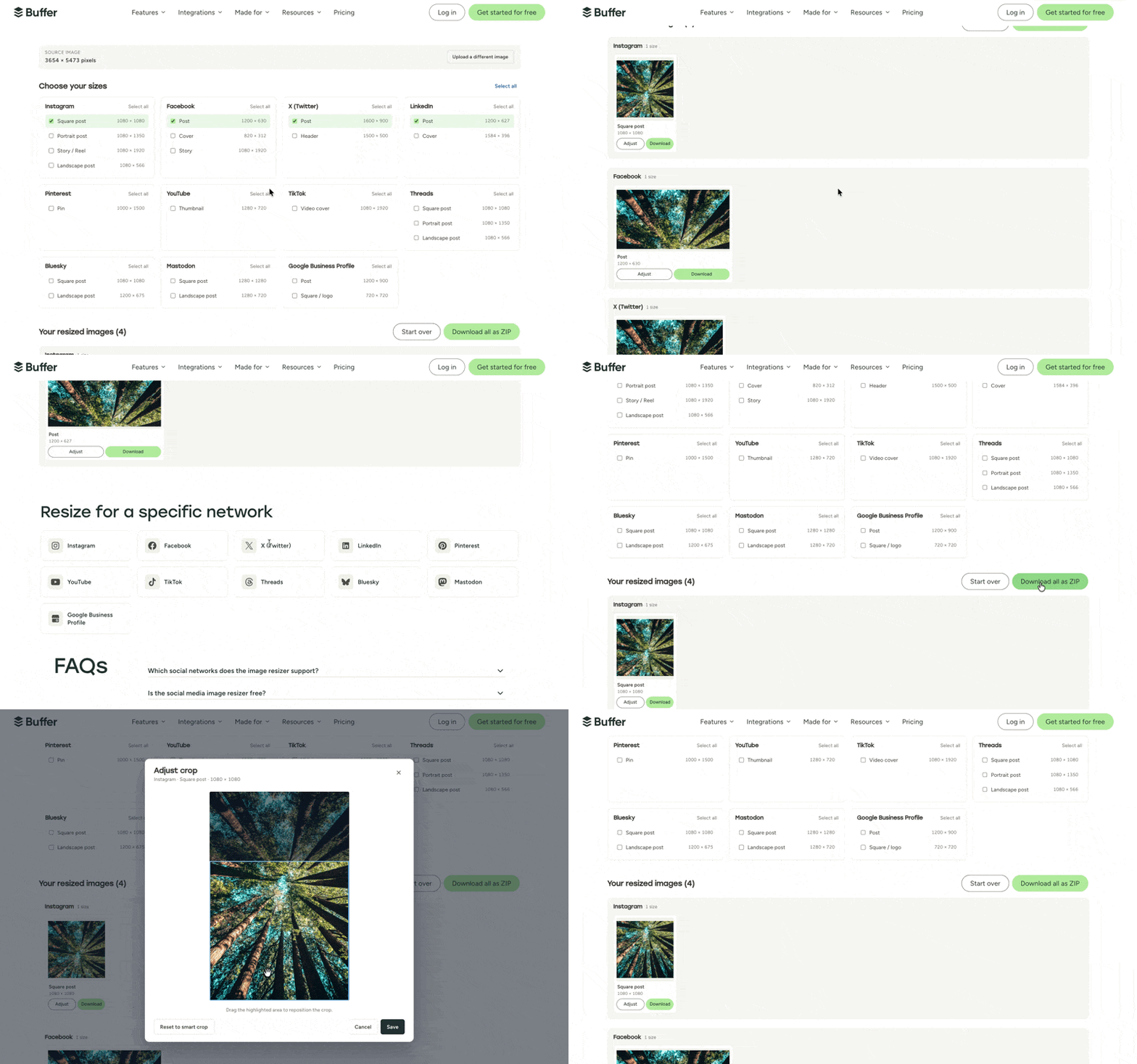
Everything updates in real time, so you can preview exactly what each cropped version will look like before downloading.
Downloading your images
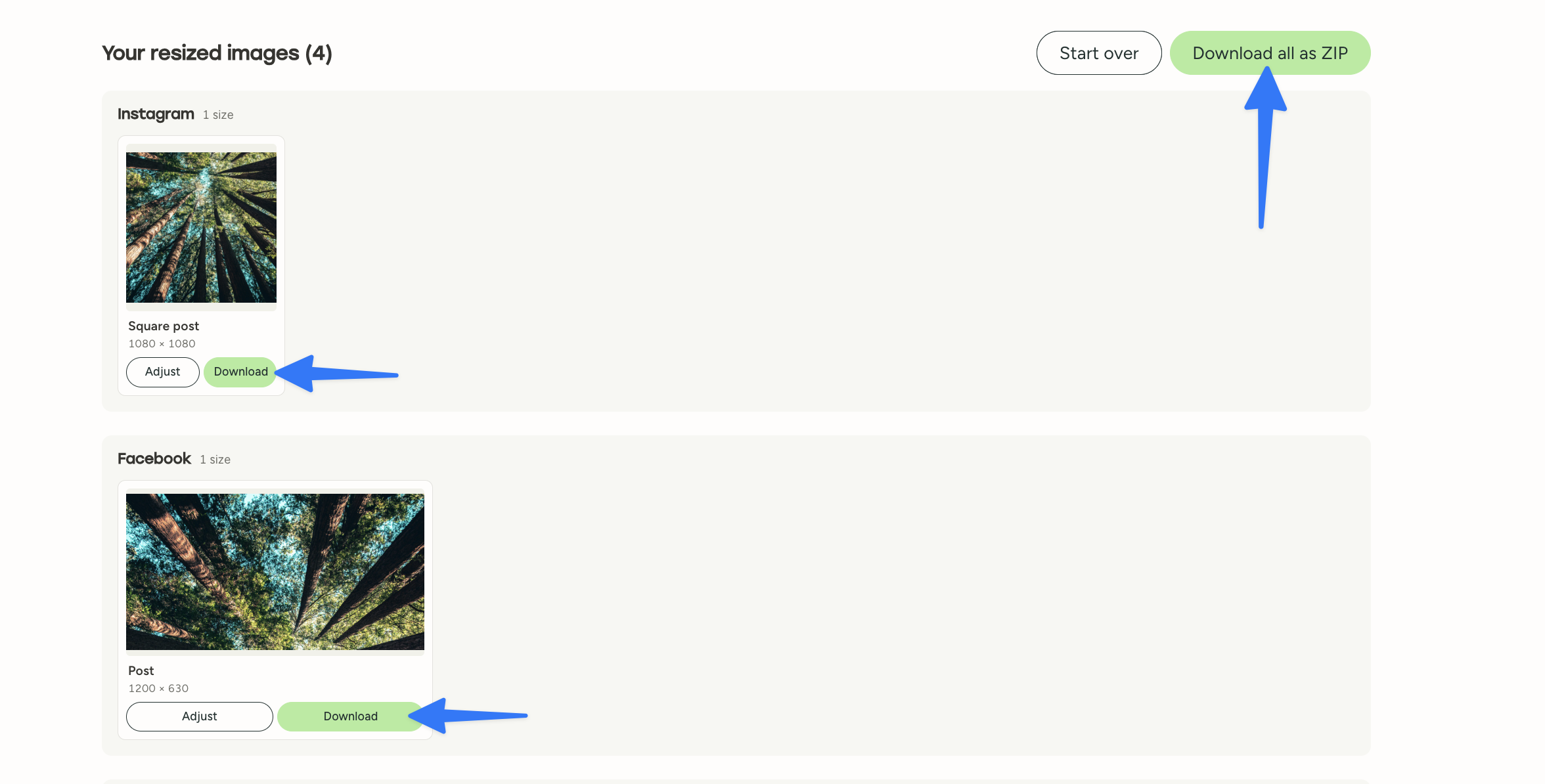
Once you're happy with your crops, you can download your resized images two ways:
- One at a time: download an individual size as you need it.
- All at once: download every resized version together as a single ZIP file.
Usage limits
Magic Resizer allows 5 free uses. After your 5th use, you'll see a prompt to sign up for a free Buffer account.
Privacy
Your image is processed entirely in your browser. It's never uploaded to Buffer's servers, so your files stay on your device throughout the whole process.
Troubleshooting
"My image looks stretched or blurry in one of the sizes." Some presets are larger than others. If your original image is smaller than a preset's target size, Magic Resizer has to scale it up to fit, which can affect quality. For the sharpest results, start with an image at least as large as the biggest preset you plan to use.
"My GIF won't upload." Magic Resizer doesn't currently support GIFs. Convert your file to JPEG, PNG, WebP, or HEIC before uploading.
"My file won't upload." Check that your file is under 10 MB and in a supported format (JPEG, PNG, WebP, or HEIC).
FAQ
Do I need a Buffer account to use Magic Resizer?
No. You can use Magic Resizer without an account, but you're limited to 5 uses, after which you'll be prompted to sign up for a free Buffer account.
Can I edit the crop for just one network and leave the others as-is?
Yes. The automatic smart crop applies to every preset, but you can open and adjust any individual preset's framing without affecting the others.
Does Magic Resizer post my images for me?
No, Magic Resizer only resizes and exports your images. To schedule or publish them to your social accounts, use Buffer's Publishing tools.
Is there a related article for sizing images I schedule through Buffer?
Yes, see Ideal image sizes and formats for your Buffer posts for size guidance specific to posts scheduled through Buffer.
📝 Need help with Magic Resizer? Send us an email at hello@buffer.com and our Advocacy team will be standing by to assist!