Using content feeds on the Buffer mobile app
Content feeds in the Buffer mobile app help you discover and share high-quality articles from your favorite blogs or publications. With just a few taps, you can add posts to your queue or save them as ideas.
Looking for the web version of "Using content feeds in Buffer"?
In this article:
- What are content feeds?
- How to access content feeds in the Buffer mobile app
- How to manage your feeds in the Buffer mobile app
- How to create a post or idea from an article in the Buffer mobile app
- Tips for using feeds effectively
What are content feeds?
Feeds pull in articles from RSS sources you choose—so you can browse curated content directly inside Buffer and quickly add it to your social schedule.
How to access content feeds in the Buffer mobile app
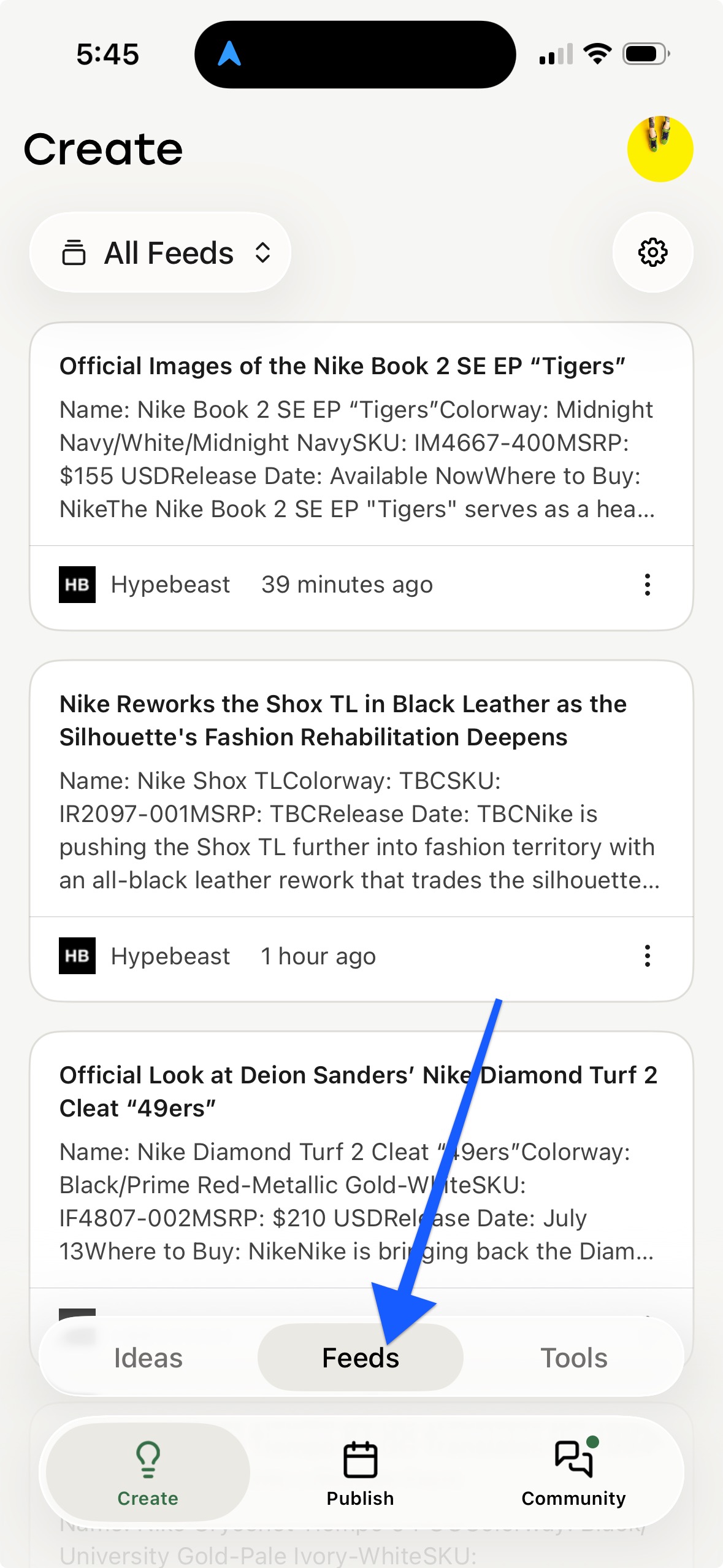
- Tap Create at the bottom of the app.
-
Tap the Feeds in the menu that appears.
How to manage your feeds in the Buffer mobile app
- From the Feeds screen, tap the gear icon (⚙️) in the top-right corner.
- From here, you can:
- Tap a folder to view existing feeds.
- To delete a feed: swipe left on the feed then tap Delete
- Tap Add to enter a new RSS feed (Add Feed) or create a new collection (Add Collection)
- Tap a folder to view existing feeds.
How to create a post or idea from an article in the Buffer mobile app
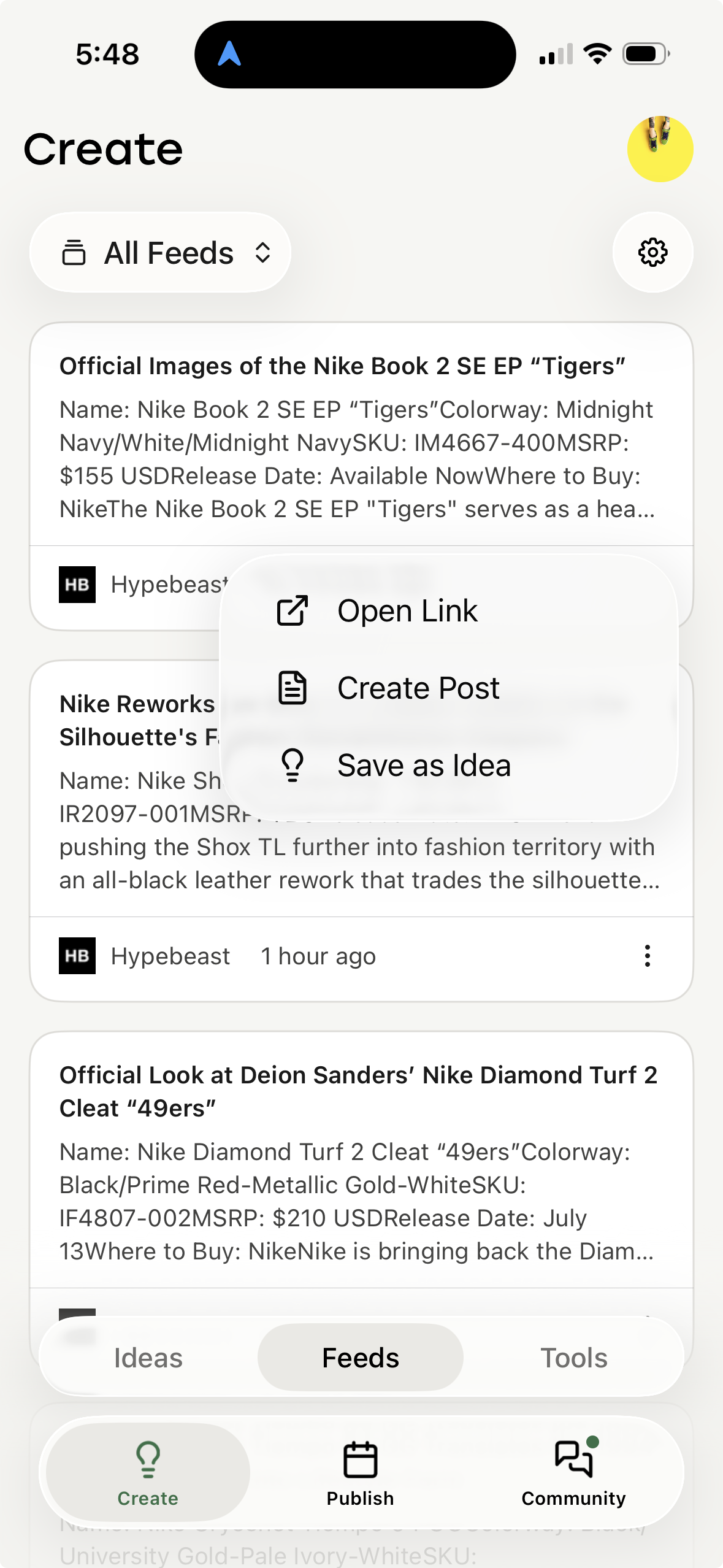
When you find an article you like, tap the three dots (⋮) next to it. You'll see these options:
- Open Link – View the full article in your browser.
- Create Post – Instantly turn the article into a social media post and schedule or publish it.
- Save as Idea – Store it in your Ideas library for future inspiration.
Tips for using feeds effectively
- Organize feeds into folders by topic or audience.
- Use Save as Idea to build a content library for later planning.
- Regularly review your feeds and remove sources that aren’t helpful or relevant.