
Navigating Buffer's new dashboard layout
You're in the right place if:
- You have Buffer's Beta features enabled (click here to check!).
- You're wondering why the dashboard looks different.
- The profile avatar/settings menu is no longer visible in the upper right corner of your web dashboard.
- The options for Publish, Create, Analyze, and Community are no longer at the top of your web dashboard.
We’ve introduced a refreshed dashboard experience in Buffer (currently in Beta) to make navigating the product simpler and more intuitive. Over time, Buffer has grown to include more tools for creating posts, publishing content, analyzing performance, and engaging with your community. Based on customer feedback, we redesigned the dashboard to make it easier to move between these tools and find what you need faster.
The refreshed dashboard will begin rolling out at the end of March. While the look and navigation have changed, the core functionality of Buffer remains the same. This guide will walk you through the new layout and highlight where to find the tools you already use.
Switching between contexts (Create, Publish, Analyze/Analytics, Community, Start Page)
You can still access the same core contexts in Buffer—they just live in different places depending on which dashboard layout you’re using.
Classic dashboard
In the classic dashboard, your main contexts are located across the top of the screen.
To switch contexts:
-
Look at the top navigation bar.
-
Click one of the contexts:
- Create
- Publish
- Analyze
- Community
- Start Page
New dashboard
In the new dashboard, contexts have moved to the left sidebar for a more channel-focused experience.
You have two ways to switch contexts:
Option 1: Switch contexts directly
-
In the left sidebar, look under the main navigation.
-
Click one of the contexts:
- Create
- Publish
- Community
- Analytics
- Start Page (appears only if you have at least one published Start Page)
This works similarly to the classic dashboard, but the navigation is now vertical instead of along the top.
⚠️ If your organization has just one connected channel, the sidebar is streamlined:
- The top-level nav shows only Home and Create (shown in blue below). You'll reach Publish, Community, Insights, Analytics, Start Page, and the Editor from that channel's own sub-navigation instead (shown in red below)
- Your channel appears in the Channels section with its sub-navigation expanded by default (you can still collapse it).
- The "Connect more channels" area shows a compact row of icon buttons plus a More channels option to browse the full channel storefront.
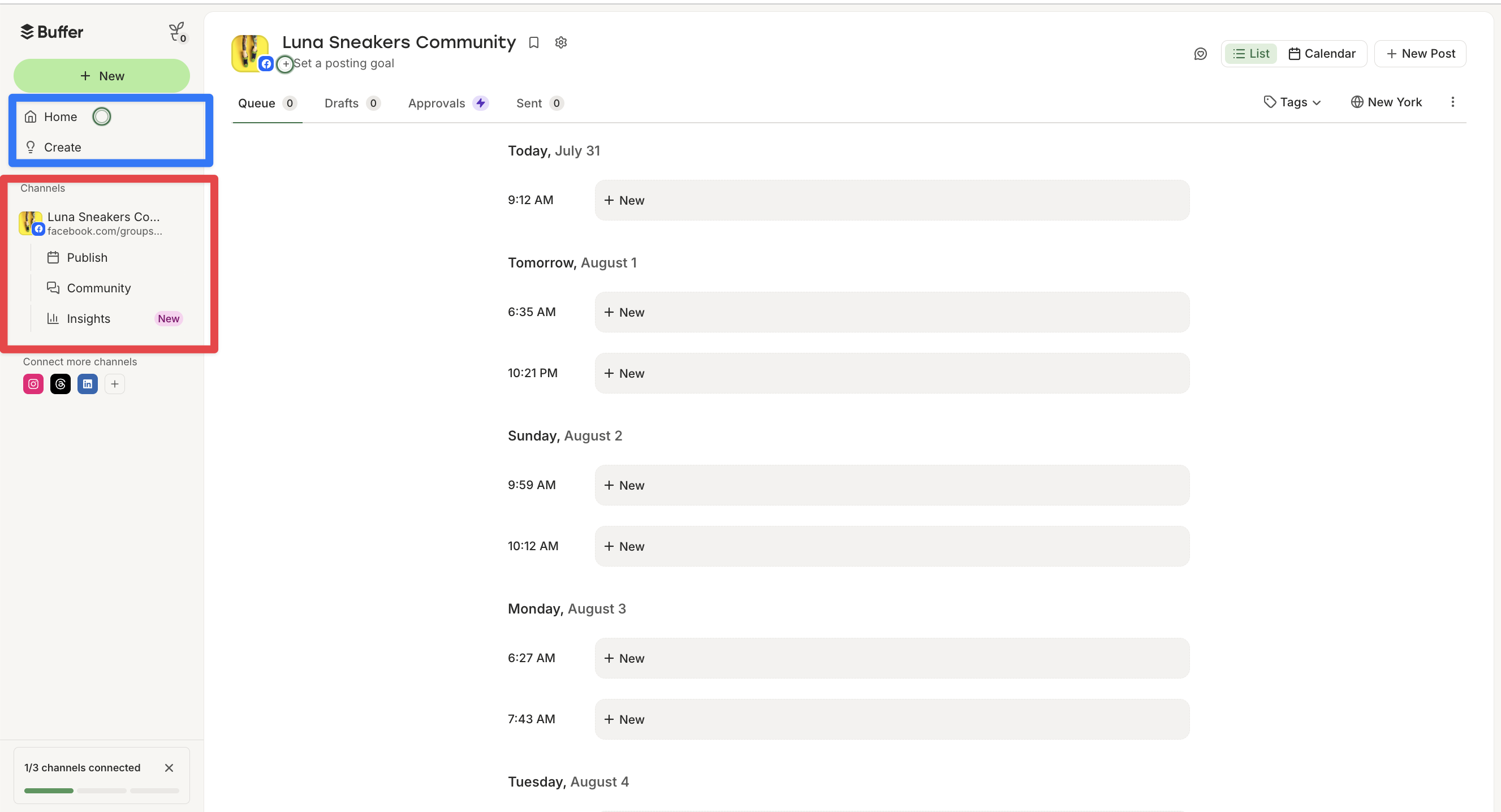
As soon as you connect a second channel, the sidebar returns to the full multi-channel layout with the top-level nav restored.
:::info Note: If you have at least one published Start Page, a Start Page icon will appear in the left sidebar for quick access. If you don't have any published Start Pages, this icon won't be visible — you can still create a new Start Page from the Channels screen (click your profile avatar → Channels → Connect Channel → Start Page). :::
Option 2: Start with a specific channel
You can also begin by selecting a channel first, then choosing a context for that channel.
- In the left sidebar, scroll to the Channels section.
- Click the arrow next to a channel name to expand it.
- You’ll see the contexts available for that channel (for example, Publish, Community, and Analytics).
- Click one of those contexts.
You’ll be taken directly to that channel inside the selected context. For example, selecting the lunasneakers Instagram → Community opens Community filtered to the lunasneakers Instagram account.
Accessing an existing Start Page in the new dashboard
- In the left sidebar, select your Start Page channel.
- Click the arrow to the right of the channel name to expand its options.
- Select Editor.
This will open the Start Page editor for that channel so you can update your links, layout, and design.
:::info Tip: If you have a published Start Page, you can also click the Start Page directly in the left sidebar navigation to jump to it quickly. :::
Creating a Start Page in the new dashboard
If you'd like to create a new Start Page, you can do so from the Channels screen.
- Click the profile avatar in the bottom left corner of the dashboard.
- Choose Channels.
- Click the green Connect Channel button.
- Select Start Page from the list of channels.
- From there, you can choose your template and get started.
Switching organizations & account settings
The organization switcher and account settings are still easy to access — the location just changes slightly in the new layout.
What you can manage in account settings
Account settings is where you manage important details for your account and organization, including:
- Changing your account email address and password
- Managing two-factor authentication
- Deleting your account
- Viewing and updating billing
- Adding or reconnecting channels
- Managing your team
- Setting preferences like time format, start day of the week, default landing page, and default timezone
- Managing email notifications
- Changing your organization name
- Managing account ownership
- Organizing content with tags and channel groups
- Creating and managing saved replies
- Exploring Apps & Extras
- Opting into Beta features
- Accessing the Partner Program
Classic dashboard
- Click your profile avatar in the top right corner of the dashboard.
- From here, you can:
- Switch organizations
- Choose Settings, Channels, Billing, Team, and more from the dropdown menu.
New dashboard
- Click your profile avatar in the bottom right corner of the dashboard.
- From here, you can:
- Switch organizations
- Select Channels, Plans and Billing, or Settings to access your account and organization settings.
FAQ
How do I switch between Publish, Create, Analyze, and Community in the new dashboard?
In the refreshed dashboard, your main navigation has moved from the top of the screen to the left sidebar. You can switch between Publish, Create, Analyze, and Community by selecting the corresponding option in the sidebar at any time.
Where can I find my account settings in the new dashboard?
Your account settings have moved from the top-right corner to your profile avatar in the bottom corner of the dashboard. Click your avatar to access account settings, billing, team management, channels, and organization settings.
Can I switch back to the classic dashboard layout?
Yes. If you’d prefer to return to the classic dashboard, you can turn off the refreshed layout by toggling Visual Refresh off from the Beta settings page. Visit https://publish.buffer.com/settings/beta and switch the Visual Refresh toggle to Off.
If you do decide to switch back, we’d love to hear what prompted the change. Any feedback or suggestions you share help our team improve the experience as we continue refining the refreshed dashboard.
Why do I see different tools when I click on a specific channel?
When you select a channel from the left sidebar, Buffer shows only the tools that are supported for that channel. This helps you focus on relevant actions for each social network, such as publishing posts, viewing analytics, or managing community engagement.
Did any features change with the new dashboard?
No features were removed as part of the dashboard refresh. The update focuses on improving navigation and layout while keeping all existing publishing, analytics, and comment management features available.
Where do I find my organizations in the new dashboard?
Your organizations and connected channels are accessible from the left sidebar. From there, you can switch organizations, select individual channels, and view the tools available for each channel.
:::info Need assistance with navigating Buffer's new dashboard? Reach out to us at hello@buffer.com, and our Customer Advocates will be standing by to help! :::