---
title: "Refreshing a channel in Buffer"
description: "Connections between Buffer and your social channels require access tokens, which can expire for several reasons, including a password change or a preset access token lifespan. Learn more about best practices for keeping your channels connected."
canonical_url: "https://support.buffer.com/articles/refreshing-a-channel-in-buffer-7oDS4jk7l1"
md_url: "https://support.buffer.com/articles/refreshing-a-channel-in-buffer-7oDS4jk7l1.md"
---
# Refreshing a channel in Buffer
Connections between Buffer and your social channels require access tokens, which can expire for several reasons, including a password change or a preset access token lifespan. Learn more about [best practices for keeping your channels connected](https://support.buffer.com/en-us/articles/best-practices-for-keeping-your-social-channels-connected-UgsmoudZJj).
While it can be frustrating to lose connection when the access token disconnects, it's normal behavior and usually results from the social network making a change to keep your account safe and secure.
## Refreshing your channel
If any of your connected channels have lost their connection, Buffer will automatically move them to the **top** of your connected channels list on the [Channels settings page](https://publish.buffer.com/settings/channels). Look for channels with a refresh prompt at the top of the list — they'll be highlighted so you can take action quickly.
1. In Buffer, click on your profile avatar at the bottom left of your dashboard and then choose the ***Channels*** option from the dropdown menu.
2. Click ***Refresh*** next to the channel that is expired.

3. You'll be prompted to enter your login details and after that, you should be all set.
:::info
**Notes**
* For the best experience with Buffer, accept any permission requests that appear during the connection or refresh process. Skipping them may prevent certain features from working as expected.
* For **Facebook Pages**, you must be logged into the personal Facebook profile that has the admin role on the Page.
* For **Instagram**, you must be logged into the Instagram business account that you wish to refresh within Buffer.
* For **LinkedIn Pages**, you must be logged into the LinkedIn profile that has Super Admin access of the page.
4. If you have any failed posts in your publishing queue, you can now go ahead and retry them. Clicking ***Re-add to Queue*** will add your post to the next available posting slot according to your [posting schedule](https://support.buffer.com/en-us/articles/setting-up-your-timezones-and-posting-schedules-P4iSag90Fl). Clicking ***Retry Now*** will publish your post immediately.
:::
## Reauthorizing your channel
As previously mentioned, a simple refresh won't always do the trick and your social channel will instead need to be fully reauthorized. Follow the steps in the relevant section below to reauthorize your channel. These steps should be followed on desktop.
### Facebook
[Follow the steps in this guide to reauthorize the connection between Buffer and Facebook](https://support.buffer.com/en-us/articles/troubleshooting-facebook-connections-9RFdJRZF2s).\*
*\*If you have connected your Instagram account to Buffer using your Facebook page, you will need to use the steps here to reauthorize the connection between Buffer and Instagram.*
### X/Twitter
1. Head over to your X/Twitter account, click ***More*** on the left panel of the dashboard, and then choose ***Settings and privacy*** from the menu that appears.
2. Click on ***Security and account access***
3. Click on ***Apps and sessions***
4. Click on ***Connected apps***
5. You should then see a list of apps. Locate Buffer and click ***Revoke app permissions***.
6. Then, head back over to Buffer and try refreshing your X/Twitter account again, ensuring you accept all permissions during the authorization process.
### Instagram
:::info
**Note:** The steps below will only work if you have connected Instagram to Buffer by logging into Instagram directly. If you have connected Instagram to Facebook using Buffer, please reauthorize [using the Facebook steps instead](https://support.buffer.com/en-us/articles/refreshing-a-channel-in-buffer-7oDS4jk7l1#h-reauthorizing-your-channel).
:::
1. Head to
2. Find Buffer listed in the "Active" tab.
3. Click ***Remove.***
4. On the confirmation screen, please click ***Remove*** to complete the process.
5. Then head back to Buffer and try refreshing your Instagram account again, ensuring you accept all permissions during the authorization process.
### Pinterest
1. Head over to your Pinterest account, click on the arrow at the top left of your account, and then click on ***Settings***.
2. From there, click ***Apps*** on the left-hand side (you can also [click this link](https://www.pinterest.com/settings/apps) to go directly there).
3. You should then see a list of authorized apps. Locate Buffer and click ***Revoke access***.
4. Then, head back over to Buffer and try refreshing your Pinterest account again, ensuring you accept all permissions during the authorization process.
### YouTube
1. Head to
2. Find Buffer listed in total apps and services.
3. Click Buffer.
4. Click ***Delete all connections that you have with Buffer.***
5. Once the connection has been deleted, head back to Buffer to try refreshing the connection.
### TikTok
1. Open the TikTok app.
2. Tap the menu icon in the upper right corner (three horizontal lines).
3. Tap ***Settings and privacy.***
4. Tap ***Security & permissions*** then tap ***Apps & services permissions.***
5. Tap Buffer from the list of apps.
6. Tap ***Remove access.***
7. Once the connection has been deleted, head back to Buffer to try refreshing the connection.
### Threads
1. Visit
2. Click on ***Website Permissions.***
3. Under ‘Active’, click the option to remove Buffer.
4. Then head back to Buffer to try refreshing the connection.
### Bluesky
1. Enter your Bluesky handle, then click the link to ***Generate app password in Bluesky.***

2. You’ll be taken to your Bluesky account. Click the ***Add App Password*** button

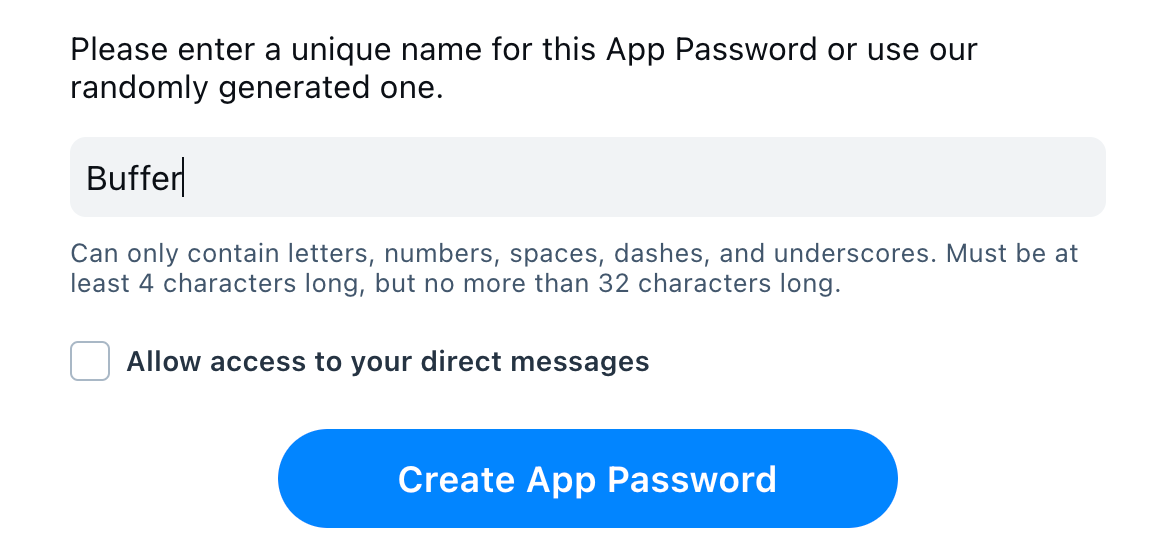
3. Add Buffer’s name or simply use the automatically generated name from Bluesky.
:::info
**Note:** You do not need to allow access to your direct messages when asked (simply uncheck the box). Buffer does not offer direct messaging, so your selection will not affect connecting your Bluesky account to Buffer.
:::
4. When your password is generated, click the two overlapping boxes next to the password to copy it.

5. Head back to the Buffer tab and paste the copied password into the “password” field, then click ***Next.*** Your Bluesky channel connection is now refreshed!

## FAQ
### What will happen if I don't refresh the connection?
If the connection is not refreshed, the application will be unable to publish any scheduled or new posts to that channel, and those posts will fail.
### Will I lose my scheduled posts if I refresh the connection?
No, refreshing the connection will not delete any of your content that is already scheduled. It only re-authorizes the application to post for you.
### Will Buffer automatically retry my failed posts once I refresh the connection?
No, Buffer will not automatically retry your failed posts if the connection fails. Therefore, once you refresh your connection, we recommend retrying any failed posts that you would like to publish.